Find a Host
Once your open house is posted, there are two ways to get a host:
Requests: agents who see your post on the board ask to host it. You approve the one you want.
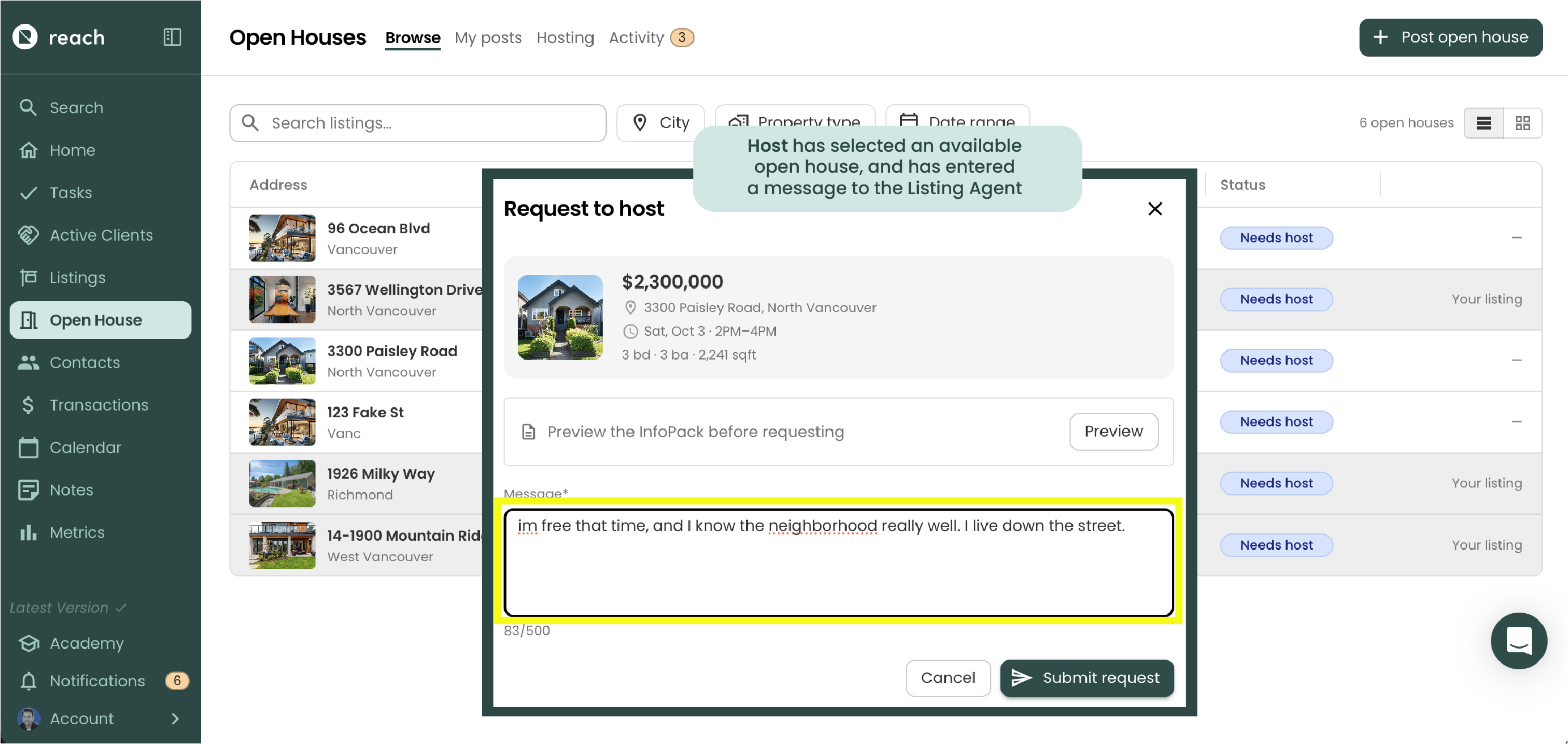
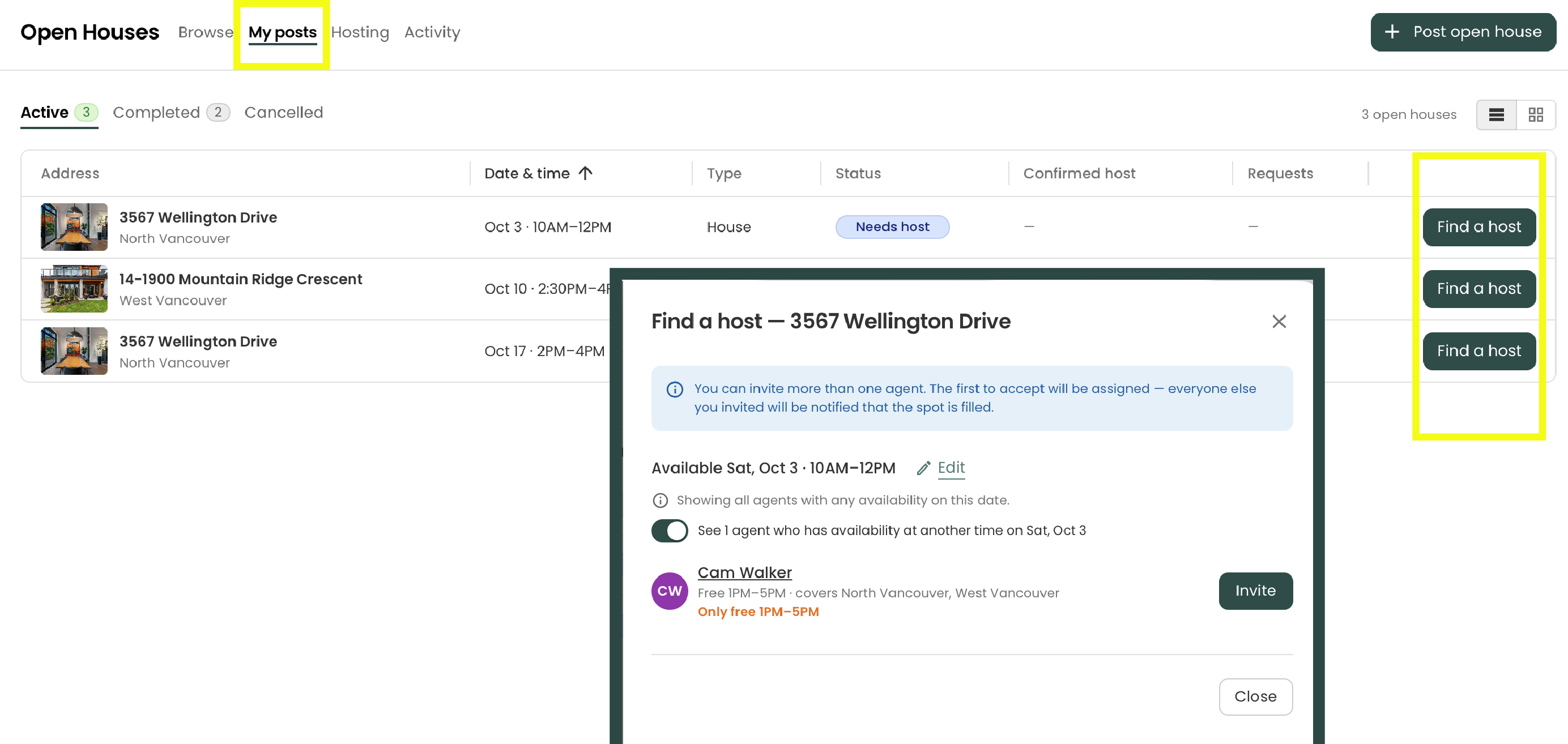
Invitations: you invite agents who have posted availability that fits your open house. The first one to accept becomes the host.
You can use both at the same time.
See who has requested
Under My posts → Active, the Requests column shows how many agents have asked to host each post (e.g. 2 requests), or how many you've invited (e.g. 1 invited).
Click the post to open it. The Requests section lists each agent and the message they sent. Click an agent's name to see their contact details, brokerage and headshot.
Approve a request
Open the post and click Approve next to the agent you want
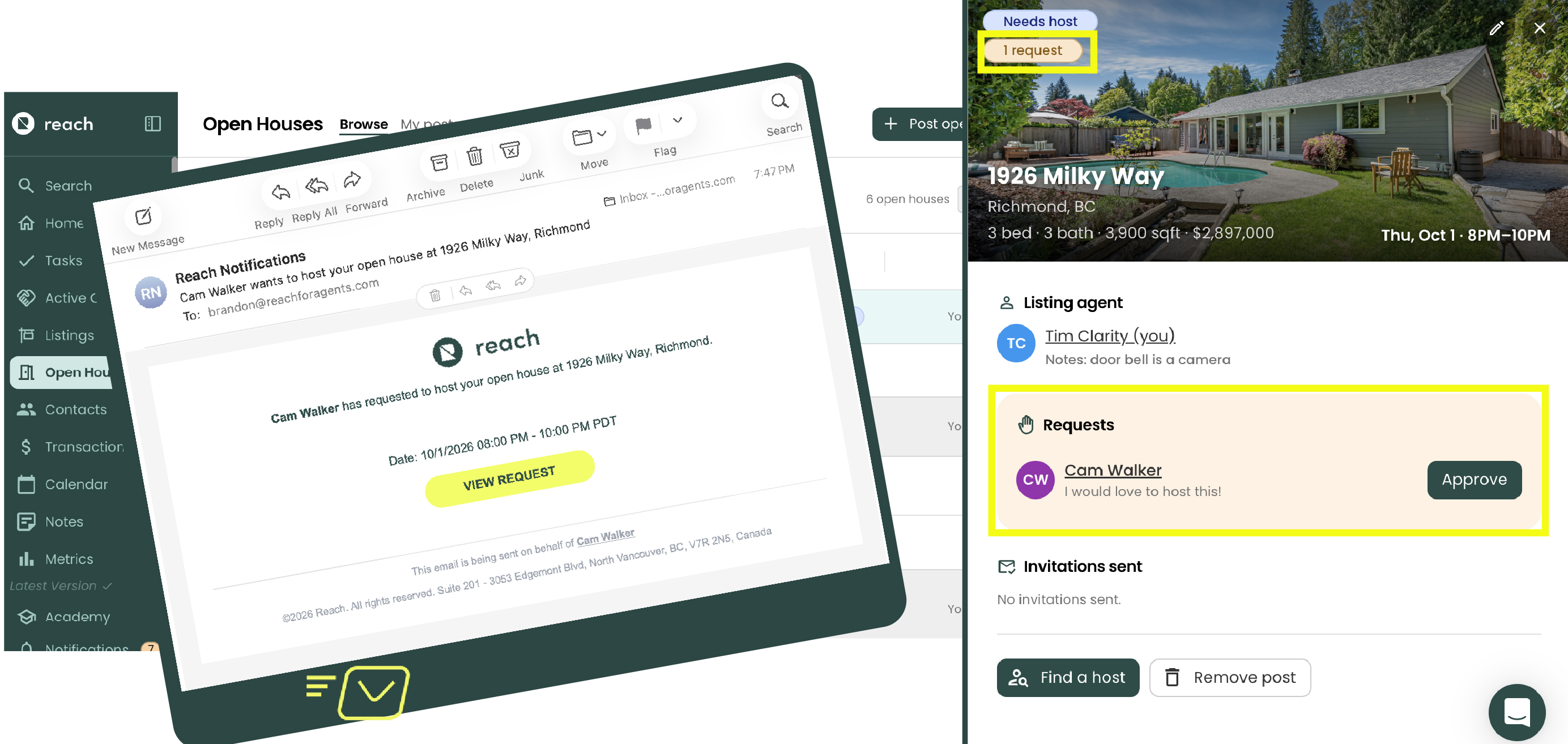
Read the "What happens next" summary, then click Approve
When you approve:
The agent is confirmed as the host and notified.
Everyone else who requested or was invited is told the open house has been filled.
Your InfoPack for the listing is copied to the host. Their copy is theirs to edit, and yours isn't changed.
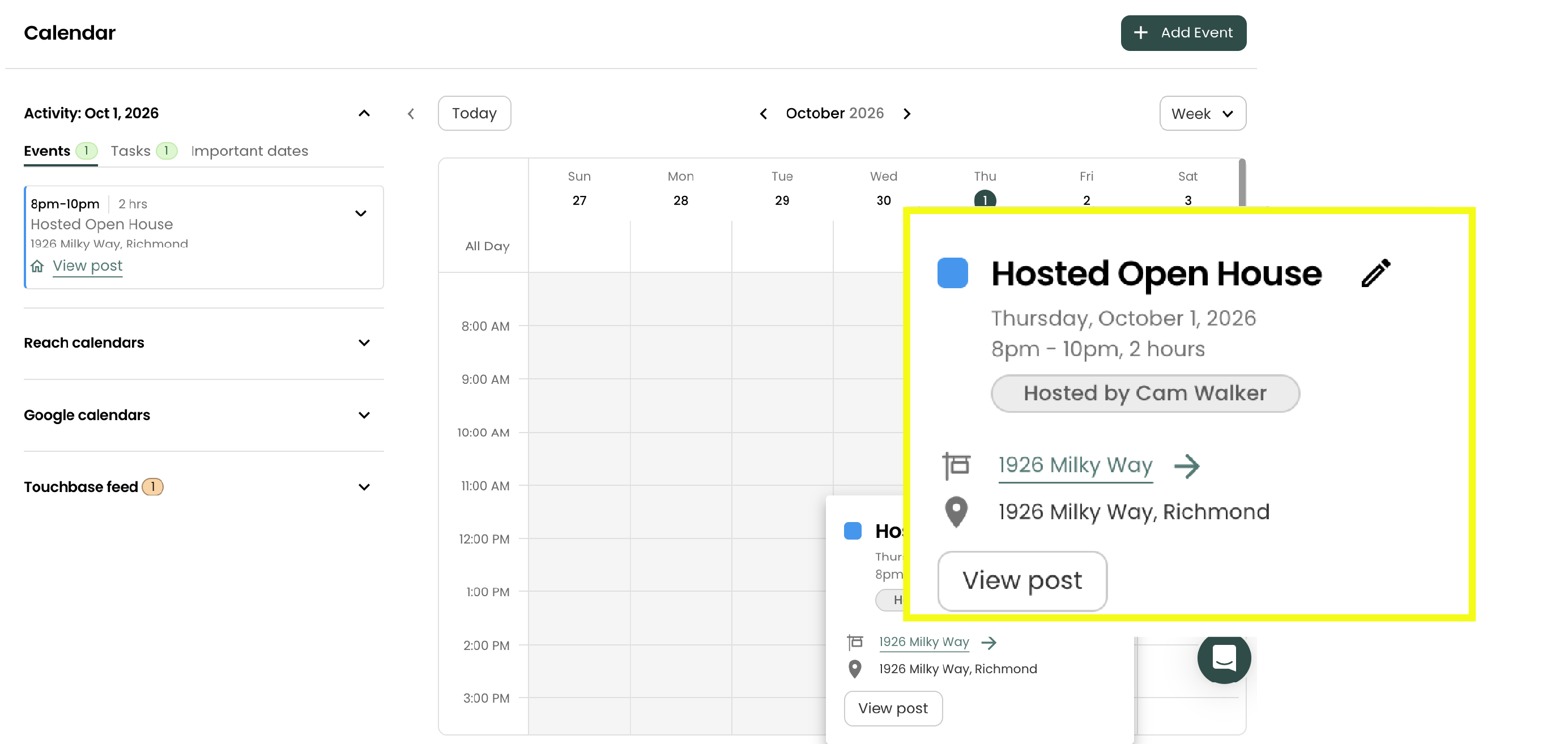
You and the host each get an Open House event in Reach, plus an invitation in your synced calendar. Listing agent Open House Event is called "HOSTED OPEN HOUSE"
The open house appears in the listing's Seller Portal, and your seller is notified based on their notification settings.
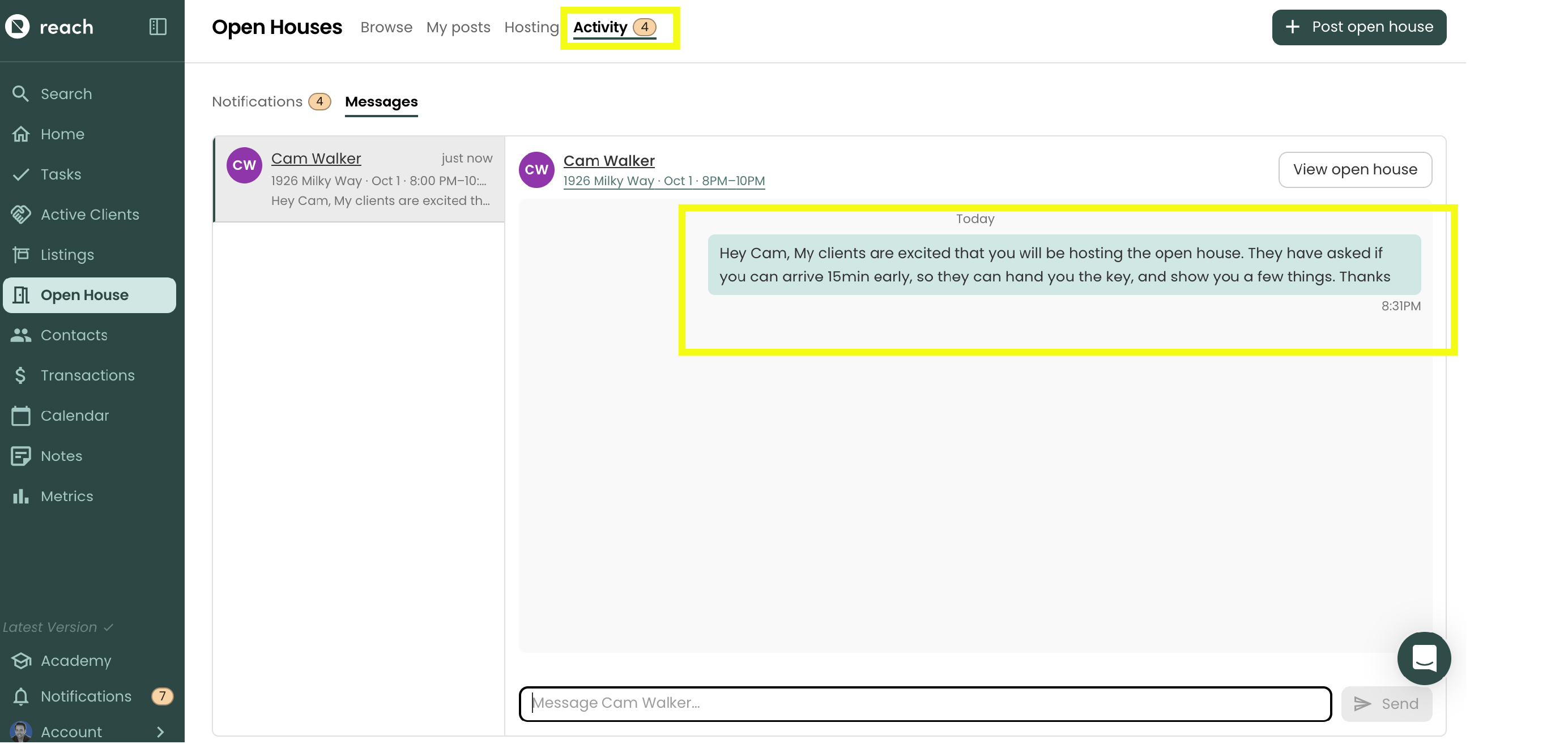
After approving, click Send the host a message to share access details or anything else they'll need on the day. This opens your message thread with them under Activity → Messages.
If the listing has no InfoPack, the approval dialog warns you that the host won't get one to work from. Think about creating an InfoPack before you approve. Otherwise the host will have to build their own.
Invite an available agent
Agents who are willing to host post their free time slots under My availability. Find a host matches those slots against your open house.
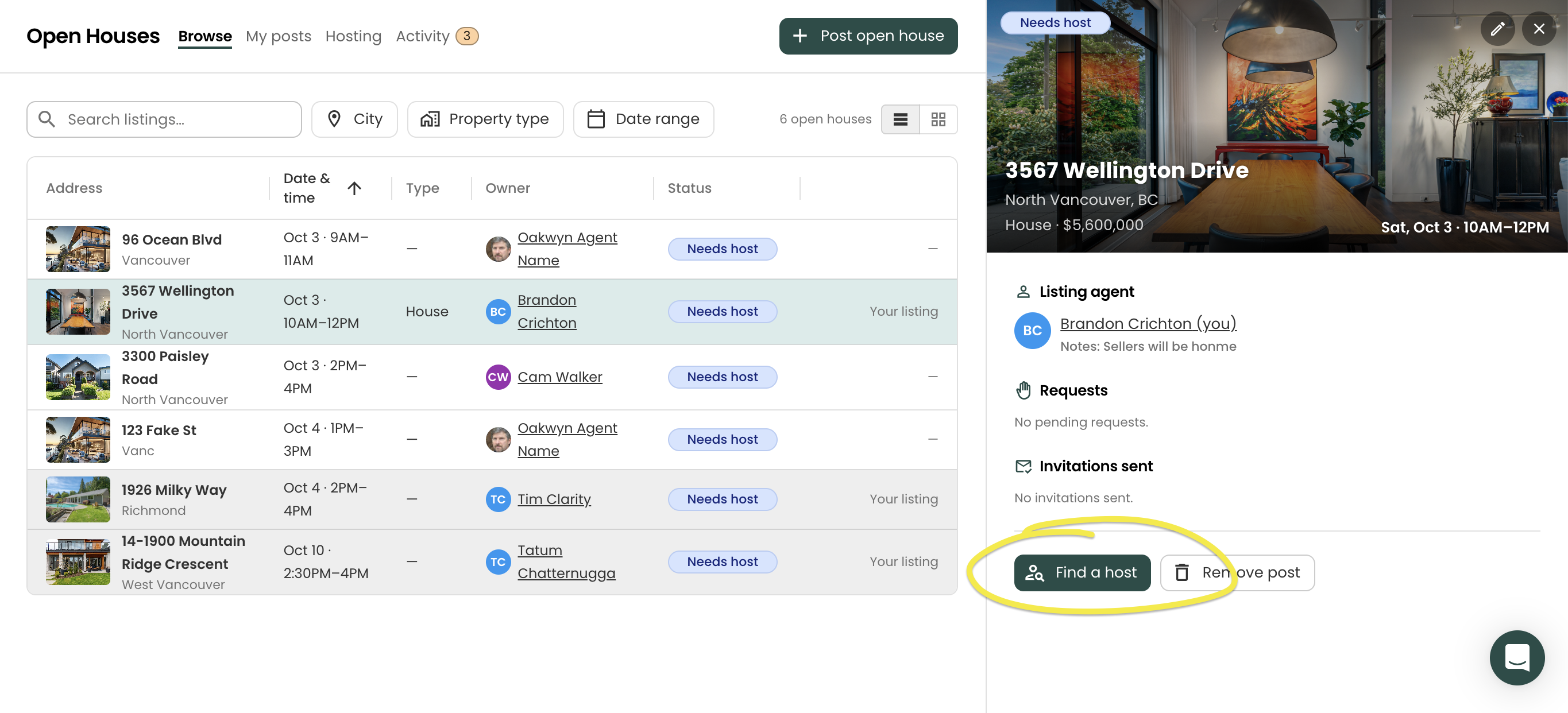
Under My posts, click Find a host on the post. You can also open the post and click Find a host there. This lists agents whose availability covers your open house window, along with their free time and the areas they cover
Partially available means their availability covers only part of your window
If other agents are free at different times that day, turn on See N agents who have availability at other times to include them. These agents are marked Only free time–time.
Click Invite next to an agent.
Add a message (optional) and click Send invitation.
You can invite more than one agent. The first to accept is assigned automatically, with no extra step from you. Everyone else you invited is told the spot has been filled.
Need to adjust the time before inviting anyone? Click Edit next to the date in the open house.
Track and withdraw invitations
Open the post to see the Invitations sent section:
- Pending: waiting for the agent to respond. Click the withdraw icon to take the invitation back, and the agent is notified.
- Declined: the agent said no. If they gave a reason, it's shown under their name.
You can also withdraw a pending invitation from the Find a host section by clicking Withdraw next to the agent.