After a Host is Confirmed
This page is for the listing agent. It covers what you can do once a host is confirmed for one of your posts, from the lead-up to the open house through to sending the report to your seller.
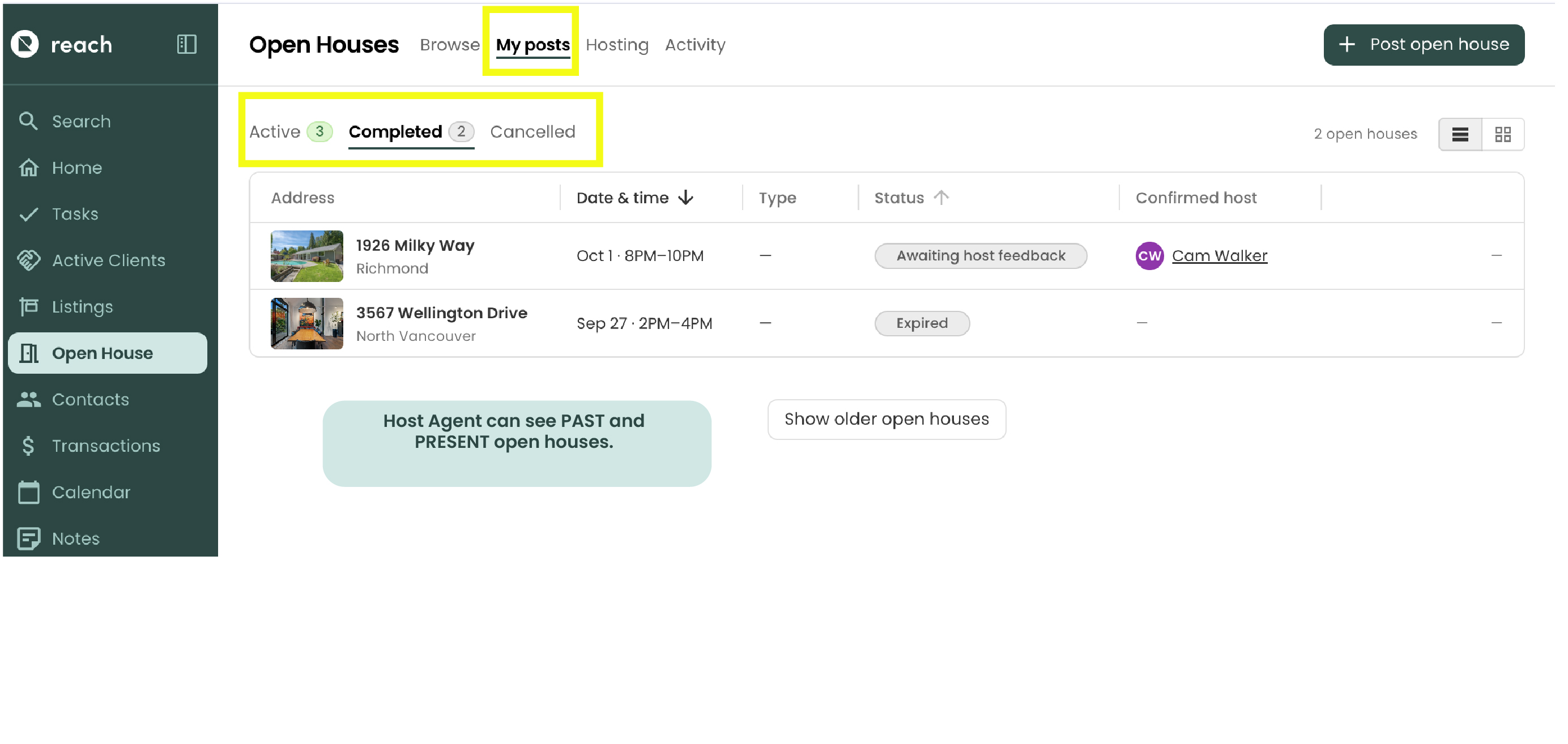
Go to My posts and click the post to open it. The Confirmed host section shows who's hosting. Click their name to see their contact details.
Message the host
Each confirmed open house has a private message thread between you and the host. Use it to share lockbox codes, parking notes, seller instructions, or anything else they need.
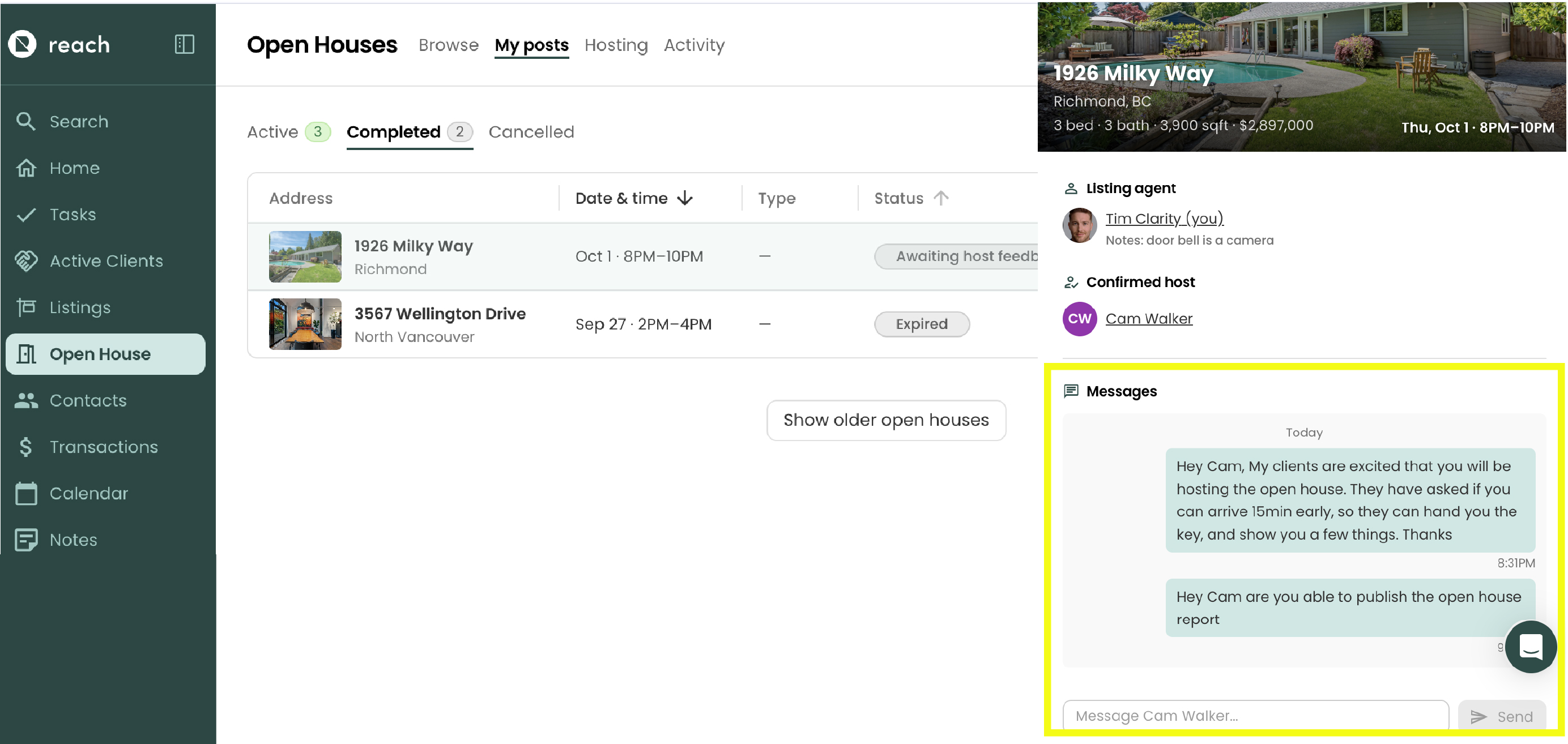
Send messages from the Messages section at the bottom of the post, or under Activity → Messages.
A New message badge appears on the post when the host has written to you.
Once the open house is completed or cancelled, the thread becomes read-only.
In your calendar
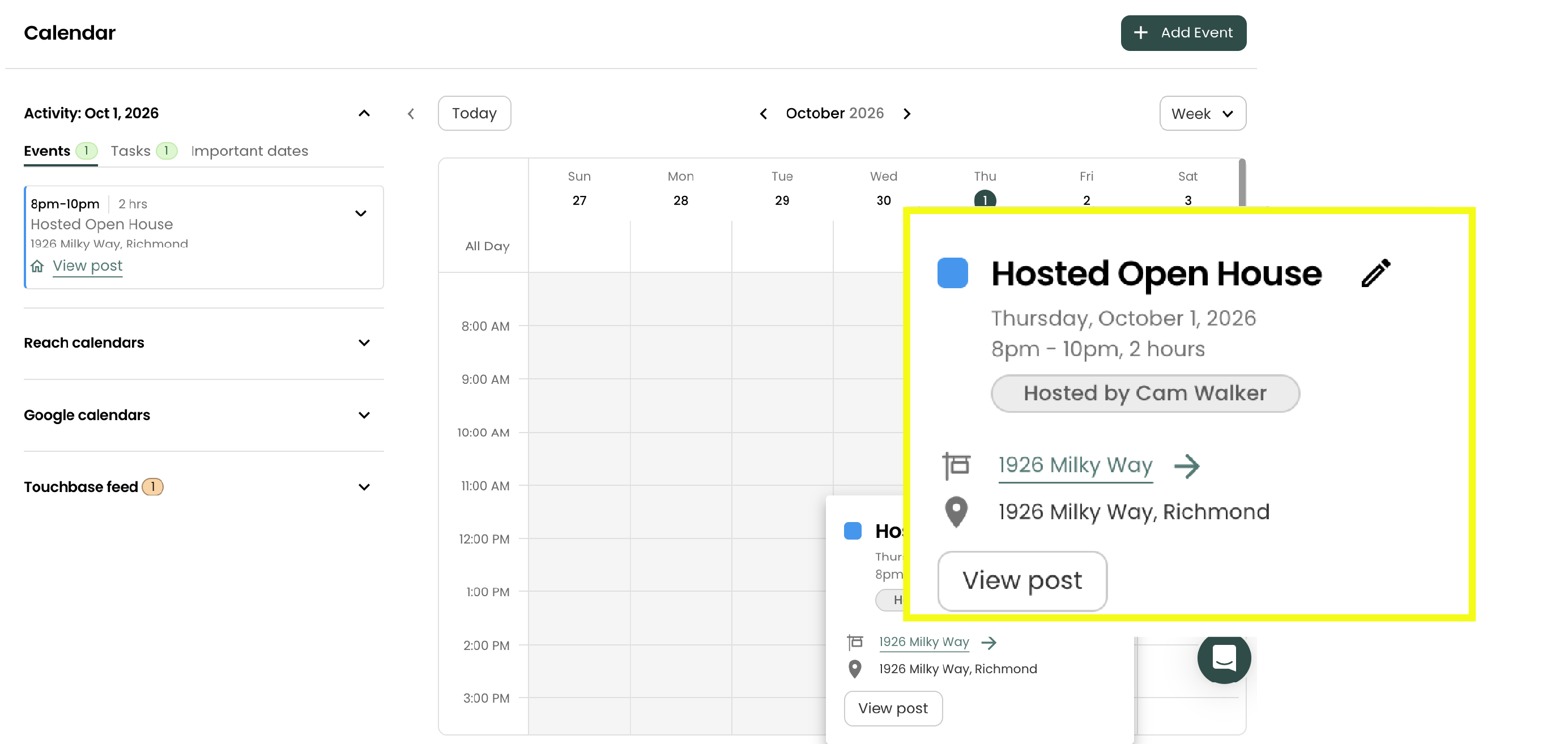
Approving a host adds an Open House event to your Reach calendar. The event shows a Hosted by [host name] badge, so you can tell at a glance that someone else is covering it. The host gets a matching event with a Hosting for [your name] badge.
Remove the host
If you need a different host, you can remove the current one and put the post back on the board.
- Open the post and click Remove host next to the confirmed host
- Add a reason (optional) and click Remove host
The host is notified and their calendar event is removed. The post goes back to Needs host, and you can find a new host. The cancelled hosting stays under My posts → Cancelled as Hosting cancelled.
To cancel the open house altogether, use Remove post instead. See Remove a post.
You can't remove a host or approve a new one once the open house has ended.
When the host asks to cancel
A host can't drop out on their own. They send you a cancellation request with a reason, and you'll get a notification.
The post shows a Cancel requested badge, and a Cancellation request box appears at the top of the post with the host's reason.
- Click Approve cancellation to release the host. The post goes back on the board as Needs host, and the host is notified.
- If you don't approve, the host stays confirmed.
After the open house
When the open house ends, the post moves to My posts → Completed and its status tracks the report:
- Awaiting host feedback: the host hasn't submitted their report yet
- Report ready to send: the host's feedback has arrived
- Report sent: you've published it to your seller
Review and publish the report to your seller
Once the host submits their feedback, the post shows a Host's open house notes section with the number of guests and the host's summary.
- Open the post and click Review & publish to seller
- The Manage open house dialog opens, pre-filled with the host's guest count and summary
- Edit the summary however you like. This is exactly what your seller will see.
- Click Publish to portal to send it to your seller
For the details of that dialog, including the attendees list, the seller summary and publishing, see Managing an Open House.
Guests who signed in at the open house are leads in the host's account, not yours. You'll see how many people came and what the host wrote, but not the guests' contact details.