Managing an Open House
Open house reports let you capture what happened at an open house — who came, notes on each attendee, and a single summary paragraph — and publish that to the seller when you're ready.
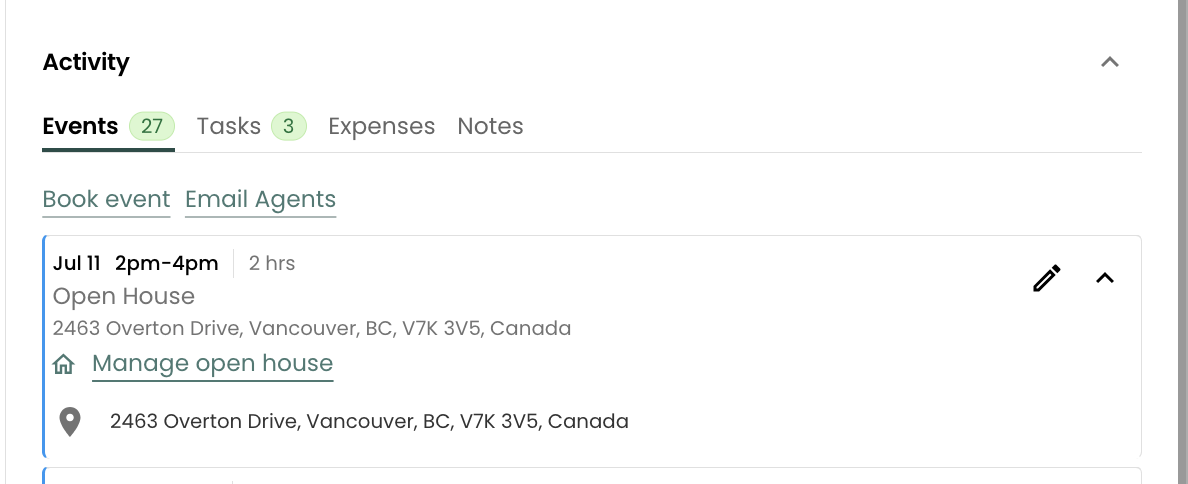
Go to a Listing's Activity, and in the Events tab, click on the Manage open house link for the event.
Hosting an open house for another agent? You open this same dialog from Open Houses → Hosting. The second tab is Feedback for listing agent, and your summary goes to the listing agent rather than the seller. See Host an Open House.
Attendees and Seller Portal Feedback
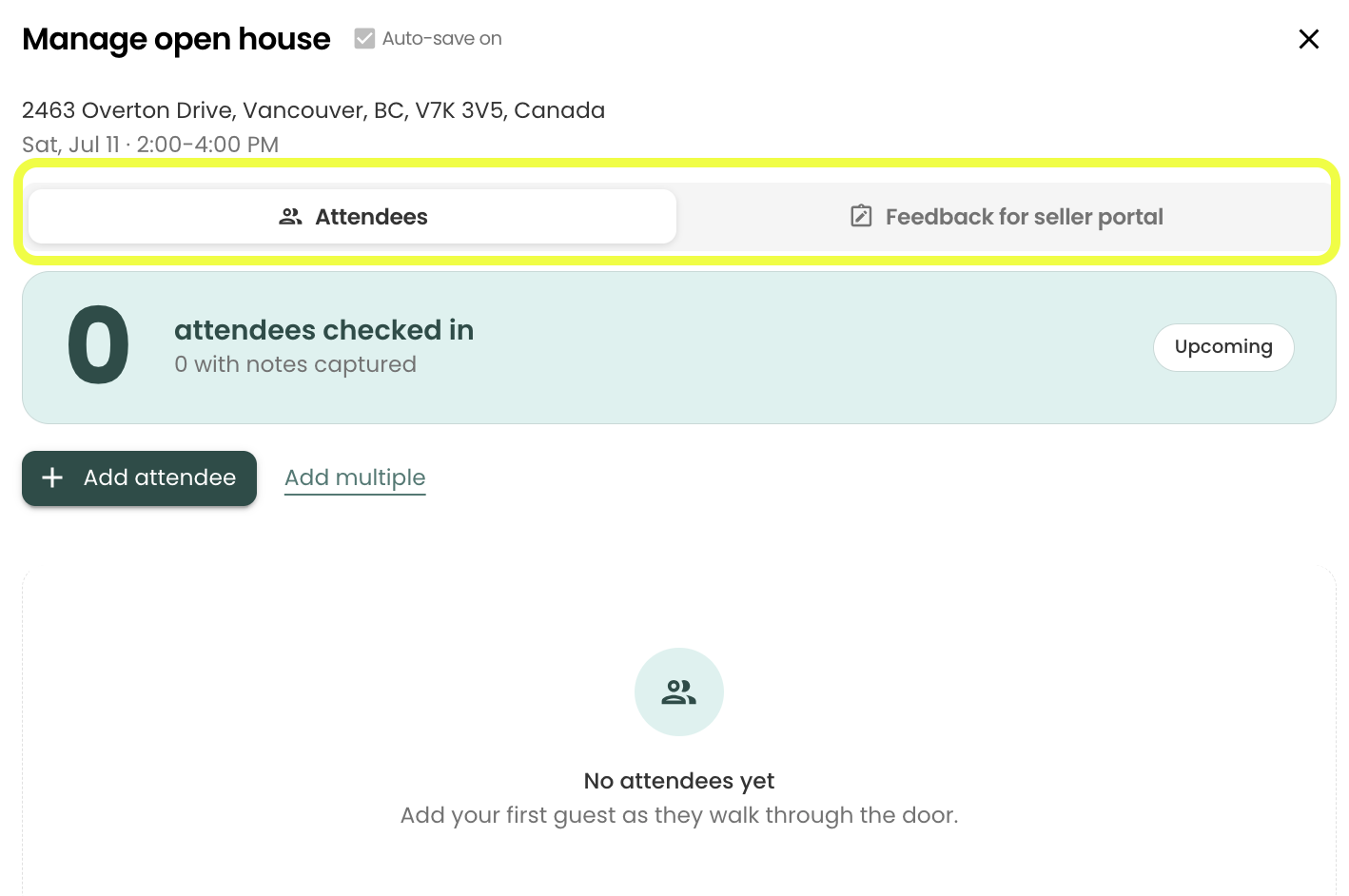
The Open House dialog has two tabs: Attendees and Feedback for seller portal
Attendees Tab
A check-in-style list of everyone who came through the open house.
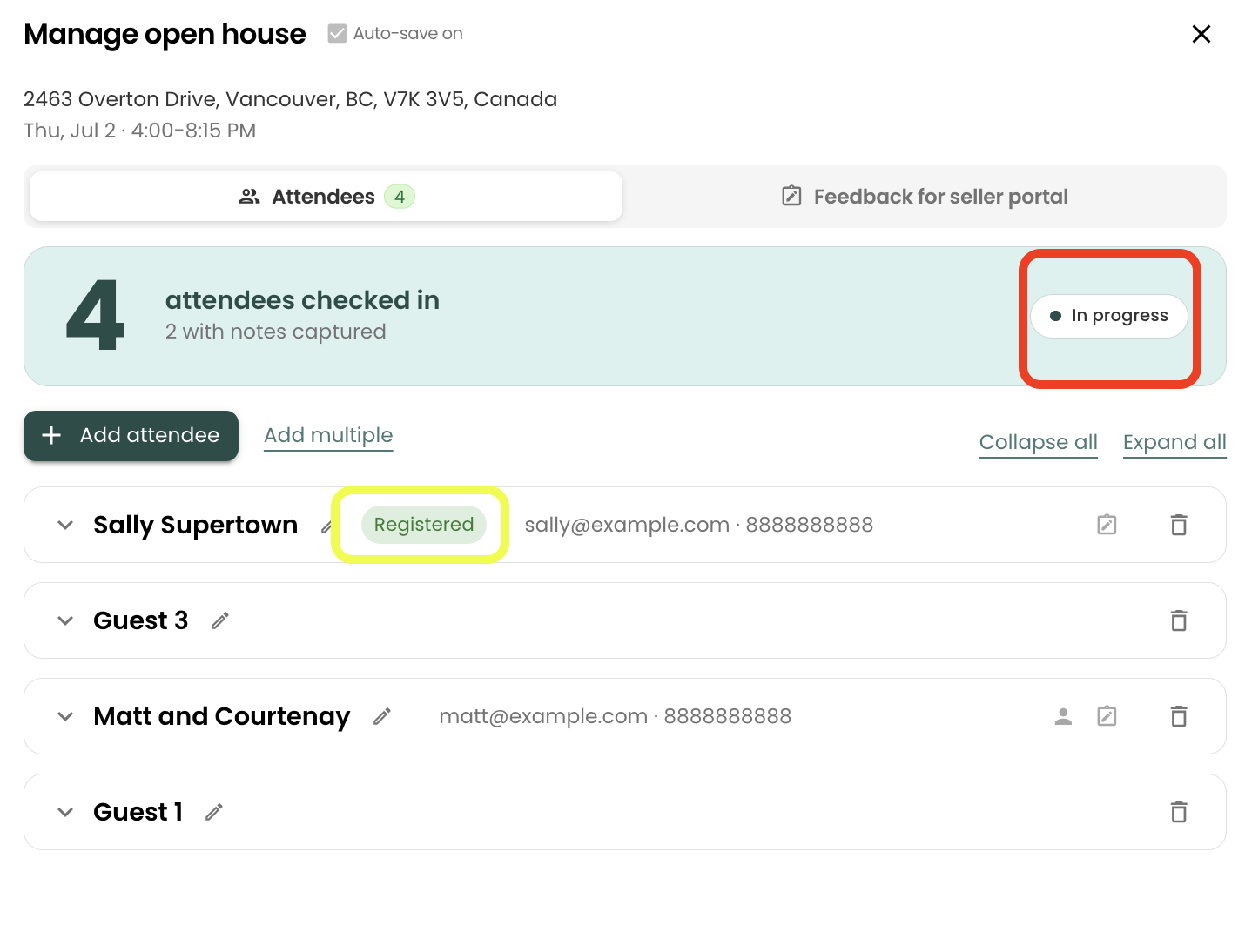
A hero counter at the top shows total attendees, how many have notes, and a live "Upcoming / In progress / Ended" badge that flips over automatically as the event's start and end times pass.
Click Add attendee to add a guest one at a time, or Add multiple to add a batch (Reach warns you when adding more than 10 at once).
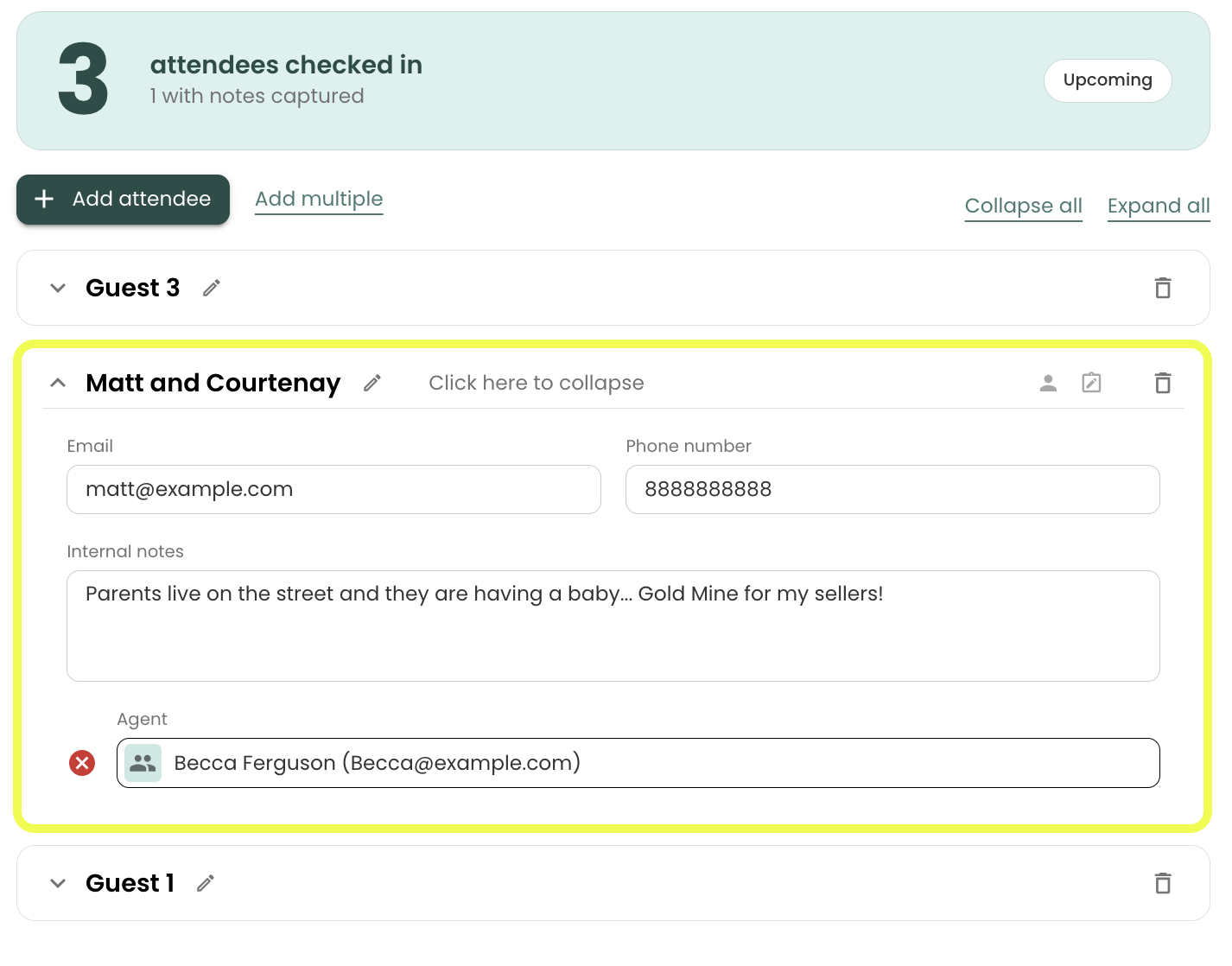
Each attendee card is collapsible. Expand it to edit their Name, Email, Phone, Internal notes (interest level, questions, follow-up), and optionally link a Buyer's agent contact.
Attendees who registered themselves — for example via a QR-code sign-in — show a green Registered chip. Attendees who self register can only do this during the open house scheduled duration/time.
- Attendee data is auto-saved while the open house is upcoming or in progress. Once the event ends, auto-save turns off and a warning banner appears; save manually to keep further edits.
Feedback for Seller Portal Tab
A single Open house summary field that is exactly what the seller sees on their portal — this is where you make massive impact to your sellers by summarizing your report, attendees and any notes you want to leave them with. They may receive the full report in their portal, and/or receive a txt/SMS notification about their Open House Report being "Available" for them to view!
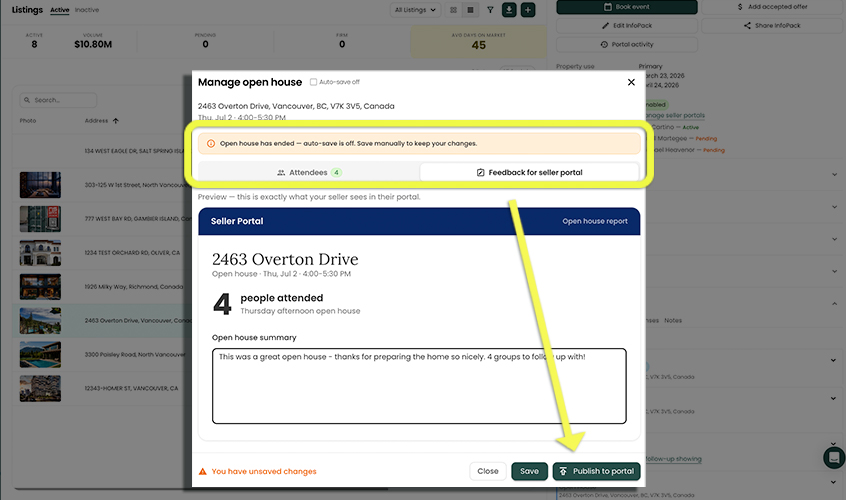
- You can draft the summary any time (before, during, or after the open house), but the Publish to portal button only becomes active after the event has ended.
- If the report has already been published, the button changes to Save + republish / Republish so the seller sees your update.
- A green "Published to the seller portal" confirmation appears in the tab once the summary is live.
Internal attendee notes (name, email, phone, notes, buyer's agent) stay private to you — the seller only ever sees the attendee count and your summary paragraph.