Post an Open House
When you need someone to host an open house for one of your listings, post it to the board. Other agents in your brokerage can then request to host it, or you can invite someone directly.
Before you post
- The listing must be one of your own active listings.
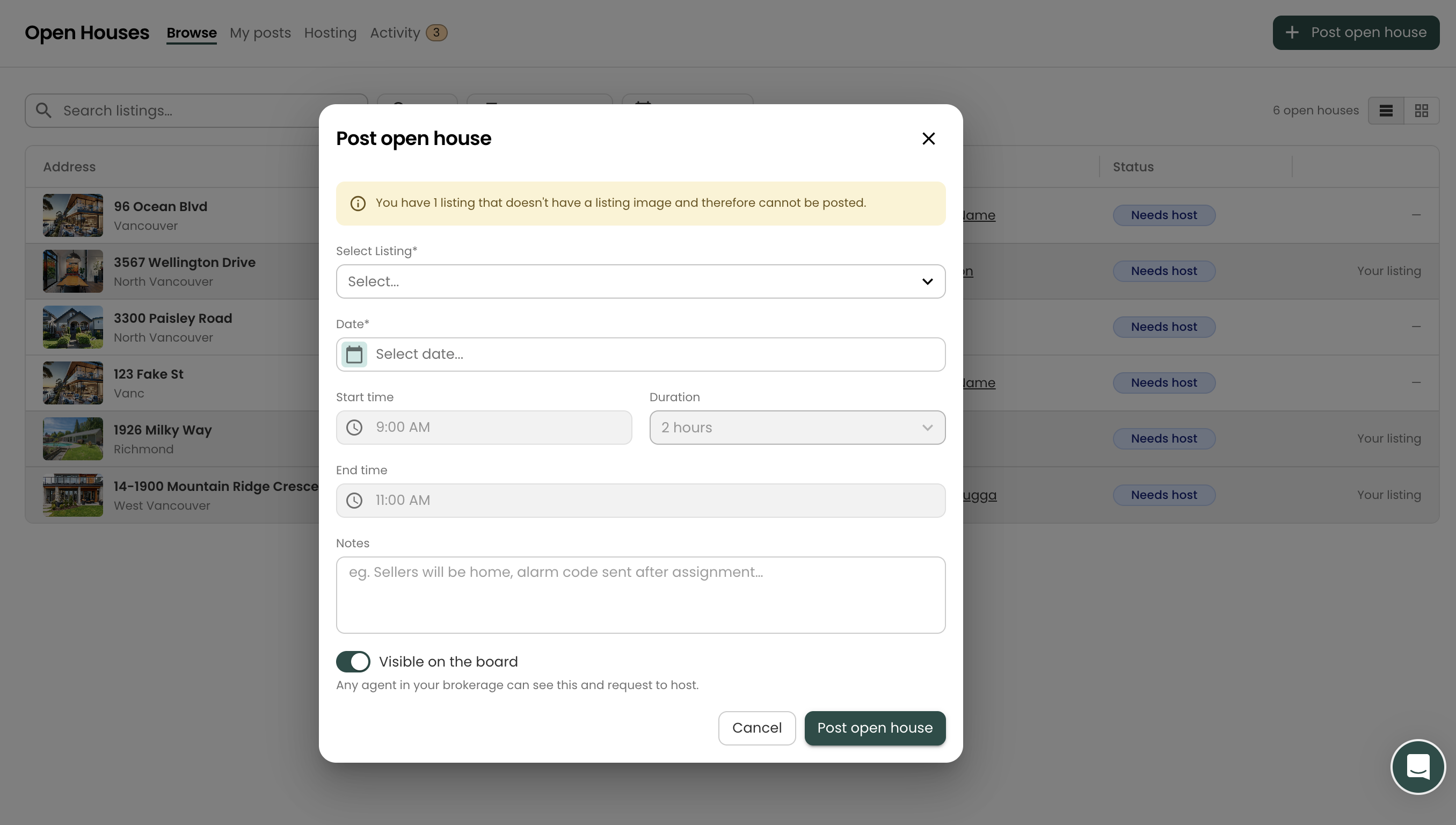
The listing must have a cover photo. Listings without one can't be selected, and a warning at the top of the dialog tells you how many are missing a photo.
- An InfoPack is strongly recommended. When a host is confirmed, they get a copy of your listing's InfoPack to work from. You can post without one, but the host will then have to create their own. (See Create an InfoPack.)
Post an open house
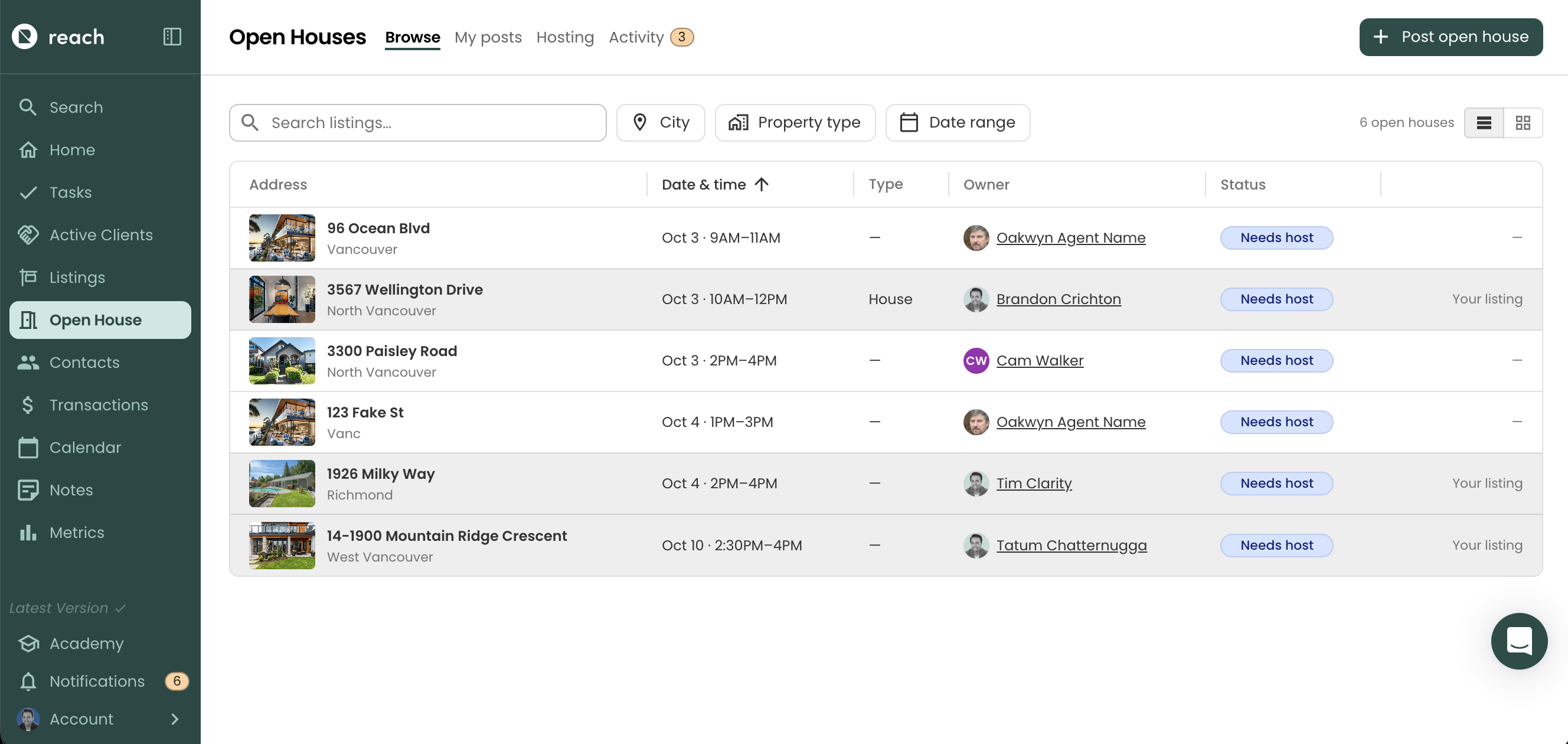
- In the sidebar, click Open Houses
- Click Post open house at the top right
- Select Listing: choose the listing
- Date: pick the day of the open house
- Set the Start time and Duration. The End time fills in automatically. Choose Custom to set your own end time instead.
- Notes (optional): anything a host should know, e.g. "Sellers will be home, alarm code sent after assignment". Every agent who can see the post can read these notes, so keep private details like lockbox or alarm codes for messages once a host is confirmed.
- Leave Visible on the board on or turn it off (see Visibility below)
- Click Post open house
You'll see "Open house posted to the board" appear at the bottom of your screen, and the post appears under My posts → Active.
The start time must be in the future, and each listing can only have one open house at a time. If the new time overlaps another open house you've posted for the same listing, Reach tells you which one and won't let you post until you pick a time that doesn't clash.
Visibility
The Visible on the board switch controls who can find your post:
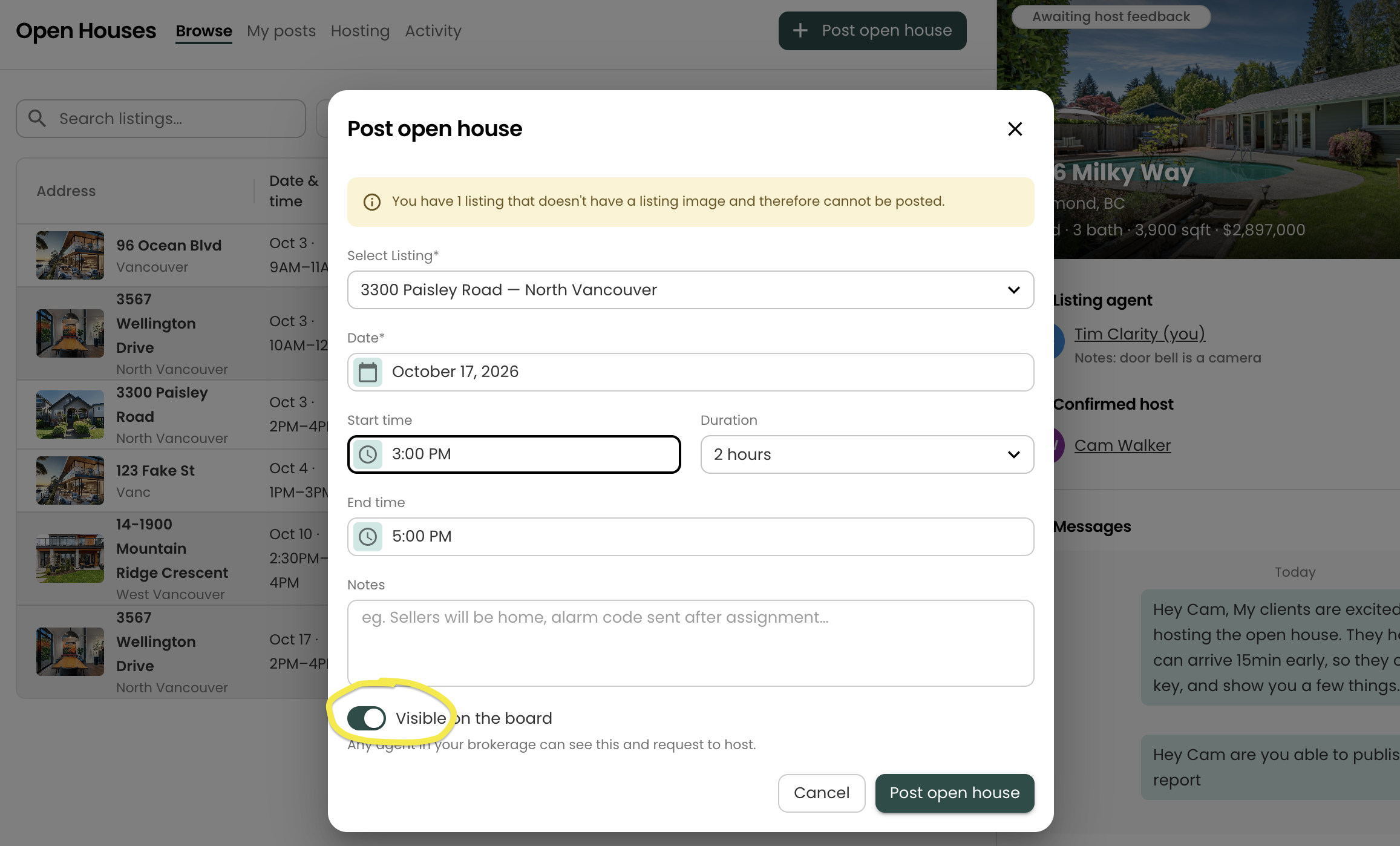
- On (default): any agent in your brokerage can see the post on Browse and request to host.
- Off (Private): the post is hidden from the board. Only agents you invite directly can see or accept it. Private posts show a black Private badge under My posts.
Edit a post
You can change the date, time, notes and visibility of a post while it's still active.
- Go to My posts and click the post to open it
- Click the pencil icon (Edit post) at the top right of the listing photo
- Make your changes and click Save changes
You can't change the listing once a post is up. To use a different listing, remove the post and create a new one.
Remove a post
- Go to My posts and click the post to open it
- Click Remove post
- Add a reason (optional) and click Remove open house post
Everyone who requested to host or was invited is notified. If a host was already confirmed, removing the post also cancels their hosting and they're notified. The post moves to My posts → Cancelled.
If you only want a different host, use Remove host instead. It keeps the post on the board. See Remove the host.
Next steps
- Find a Host: review requests and invite available agents